
Since I uploaded my recent films shot on the Canon 5DmkII in 2.35:1 on vimeo without borders I have been asked how to do it. So here as promised is the simple tutorial with thanks to Kevin Shahinian.
Framing wise for 2:35 to 1 you can either mark tape on the LCD or do what I do and guesstimate! That is where the very usual matte effect built into FCP comes in handy. The Widescreen matte is very cool as it lets you set the matte to what you want then simply shift the image within that matte to make the framing work for you. Watch the video to learn more.
MAKE SURE WHEN YOU EXPORT YOU SELECT MAINTAIN ASPECT RATIO WITH CROP!!
[vimeo 10215536 640 360]
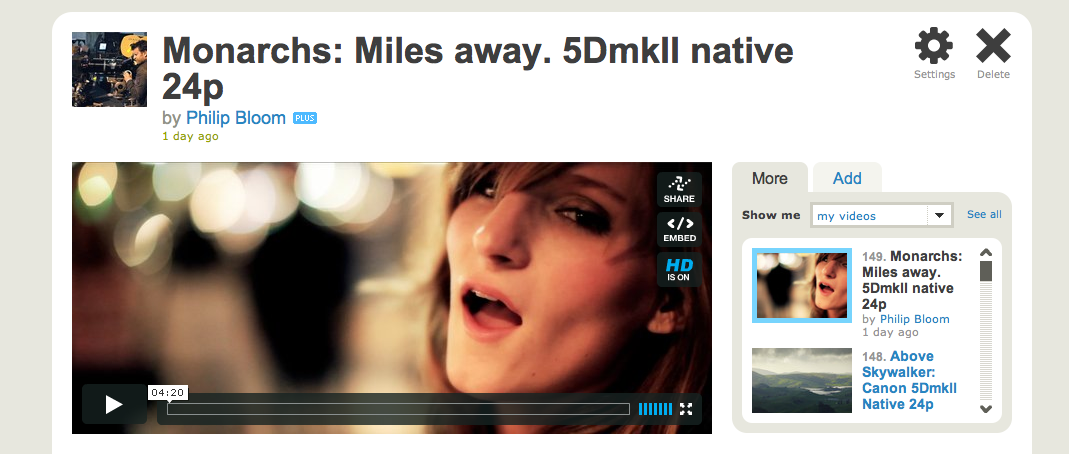
Monarchs: Miles away. 5DmkII native 24p from Philip Bloom on Vimeo.
97 comments
As soon as I asked myself this question, Philip came through with a tutorial. It was like I willed him to teach me through the internet. Cosmic.
Saw your tweet regarding this blog post, very helpful. Thanks!!!
Great post, thanks for sharing Philip!
If you are using after effects it is possible to create a new project 1920 x 1080, create a new solid that is 235px x 100px, right click the solid and select fit to comp width, make sure continuously rasterize is selected for the layer, this creates a matte you can use for a 2.35:1 ratio.
the rest is as per your tutorial
Just saves you having to buy the nattress plug-in just for a matte if you don’t need the rest of the plug-in’s features.
final cut pro has widescreen matte filter with presets. you don’t need a plugin
thanks for tip. will correct blog and try and correct video!
Brian,
Where is the matte filter with presets? Thanks man!
it is listed in Effect Panel>Video Filters>Matte>Widescreen
I think it’s under
Video Filters -> Matte -> WideScreen, you should see 2.35:1 as one of the option, please correct me if I am wrong
Thanks
-Yiow
You can find it under effects > Matte > Widescreen. Works just as well!
Brilliant work as ever mate! Loved the tutorial, saved as a favorite on Vimeo, very helpful!
Hi Philip,
Quick question: I downloaded the “Monarchs” music video from Vimeo and played it full screen on my iMac. Looked stunning, but there was a very thin white line across the bottom part of the frame. Is that something from the matte? (Or maybe it’s a Quicktime quirk…)
Thanks.
fixed!
Wow, I didn’t know is was such a hard, long process for Final Cut users. It’s really quite easy to do this with Adobe Premiere. I guess I can add this as another one of the many reasons I prefer Premiere over Final Cut. 😉
I also noticed a very visible white line at the bottom of the screen at full size in all of your videos that you applied this crop to. You might want to try 1920×816 instead of 817 to see if it will knock off that last pixel row.
You can see an example I exported from Premiere: http://vimeo.com/9139703 The process is Premiere is simply changing the dimensions to 1920×817 and then applying a top-crop at 131, and a bottom crop to 132. No line, takes about three seconds, and gives you perfect 2.35.
Great video though!
Richard,
You can do this in FCP also. There is always more than one way to skin a cat. To each their own.
Hi! I’ve tried this with H.264 as format but it will not crop? What format should I use?
Best regards
Ove Ellemark
Stockholm
Um, why go through all the extra steps. Attention Bloomtards: you can save headache and export like this straight from FCP using “Quicktime Conversion” and save a generation of compression. And Phil, what’s up with your footer? It’s got more logos than Jeff Gordon’s race car. Cheers!
Wow! It still amazes that people think it is to be rude like this. I published this comment to show everyone what sort of person you are and to correct you. Export as QuickTime conversion with rendered filters on the timeline like magic bullet will mean everything will be re rendered adding a really long time to the process.
Learn a bit of respect and etitquette please Shane. Your attitude stinks. Keep your rude remarks to yourself.
Thanks
P
Haha, I didn’t think you’d actually approve it. You gotta let us trolls have our fun, now.
You’re right. It was dickish. But I can be a sport about it, if that’s cool.
Re: rerendering, in a quick and dirty test, I rendered a 84 second clip in 2 mins and 21 seconds (ProRes). It then took 36 seconds to export to stand alone file, and 1:45 to convert from Quicktime Pro. Using quicktime conversion straight from FCP, it was 1:45, so there apparently is no rerender, nor should their be, since it should reference the already rendered media and just do a format conversion. Now, I don’t have magic bullet so I can’t speak to that specifically.
Also, many workflows wouldn’t have that issue, i.e. if you do your color work in Color.
Anyway, just another tip I guess. Using Quicktime Conversion can save you a step and a generation if your workflow allows it.
Cheers!
Magic Bullet Looks is a render hog. Any short cut in rendering time is a plus.
Not feeding trolls, but just going to say that when you export straight to “Quicktime Conversion” you can run into a few extra problems. I tend to (with Looks Filter especially) get jump frames when I have jump cuts. It’s very hard to explain, but you get a random frame at a jump cut.
ALSO…. if you use Text Generators, you can sometimes get some really bad distortion. The text will droop… or stretch downward. Very odd. Happens most often when exporting “QTC”.
Anyway… I appreciate your tutorials Phil and try to buy stuff through your links when I can.
Thanks,
Frisby
Cheers mate
Bloomtards are better than Shanetards… Oh wait you don’t even have tards do you?
Good stuff Grand Master Bloom!
let’s not even go to the planettards LOL
Philip – we’re meeting at Danny’s – not Denny’s
Thanks for posting the tutorial! Even I can learn something new 🙂
planettards would win the battle on day 1.
why are you so rude?
Shane,
Do you have website? I’d like to see the quality of work your posting on the internet.
Your attitude has no business on this website. Phil is great teacher and this site is an extremely valuable resource for filmmakers. I’ve followed this site for two years and the information is always solid.
Thank you to Phil for always inspiring us and making sure we don’t follow guys like Shane.
Just to be the-guy-that-complains, the lipsync could use some more love.
Beside that, great stuff as usual 🙂
I got a problem with wvga (848×480) to it uploads to 640*360 on vimeo.
Anyone knows what i should do to get 848*480?
great tip, thanks philip!
I simply just use Compressor to do all that for me.
Thanks for the tutorial. It’s quite a difference what aspect ratio makes to film. I’m sure theres some interesting psychology behind reading squarer images and more panoramic ones. I think your point on reference files was a good one. I very rarely export directly from FCP. Alias/Ref file and into MPEGStreamclip or Compressor. Much easier. TTFN ; )
First of all let me say great tutorial. While looking at the final product I was wondering why it looked really narrow to me and I started doing some math, this is what I came up with: 1920/2,35=842,553191 so I think the final output should be 1920×842.
Am I thinking the correct way here or am I making a mistake? The end product does look a bit narrower to me than the edit with the matte in FCP.
Question: How would you find the 2:35:1 pixels for say a 720p native project Phill?
Essentially how did you come up with the 1920 X 817 ?
Thanks Phill!
Hey Cody, Here is what I used to figure out any aspect ratio. http://www.digitalrebellion.com/aspect_calc.htm
Hope this helps! Take care, Taylor
This is amazing! I was wondering how to do this exact thing just yesterday. Thank you for sharing Philip, I really appreciate it. =)
100$ for plug-ins pack is very expensive for me. Can you send only this plug-in to my e-mail or post link. lybensky@gmail.com
Please! Please! Please! Thank you:)
UH OH!
I just followed your tutorial Phil and everything worked great EXCEPT when I full screen my 2:35 video I get a long yellow line across the bottom. I noticed this on your Monarchs video too. Full screen your video to see what I mean. How do we get rid of that nasty bugger?
am trying 816 to see if it fixes
Thanks for the video Philip.
But even more thanks to all the comments on how to do it with AE or Premiere.
Thanks guys.
Hi Philip – just a question, is there any reason why you wouldn’t do this inside FCP? say setting up a pro res sequence in 1920×817 then nest your edit into it? then export it out from there?
Love your work and your passion to keep pushing the envelope.
Cheers
I thought the same thing, but then remembered that I don’t trust FCP not to scale anything that isn’t the same size as the timeline.
So I did a quick experiment: I created a 1920×1080 graphic with mostly 1 pixel horizontal and vertical black lines, and dropped it onto a 1920×817 timeline. FCP pillarboxes it (the default), and if you zoom it up to 100% scale again it fits the 1920 pixel width, but instead of only black or white pixels, everything has grey edges.
I don’t know whether it’s scaling it by 100.00001%, or first down and then up, but the net result is: do not use FCP for cropping good footage!
(FCP 7.0.1, 10.6.2, but pretty universal I’d say)
A great tutorial no doubt – Philip I am a huge fan.
But I have to say that Compressor let’s you do this all in one.
The Natress plugin is great and every hardcore FCP user should have it, so do your crop as Philip clearly explains in his tutorial…
Now to save yourself a generation of compressing, create an overall in and out on your sequence timeline and just choose “File > Send To > Compressor” (if you’re using the latest version of FCP). Then once in Compressor choose your codec/compression scheme of choice, and while it’s still selected, click over to the Geometry tab in the Inspector. Choose a 2.35:1 crop under the Crop header. This should crop your video perfectly so there are no black letterboxes. If it doesn’t, it is probably because you are outputting to weird custom dimensions, and you’ll need to manually set the crop.
Either way, this will save you having to a) wait for a whole version to compress out from FCP, even if it’s a reference (ref files still take some time if you’re doing a 1-2 hour project) and b) you will not then need to recompress out from Quicktime Pro 7. With Compressor it will crop your footage and then encode your export in one step.
Hope this helps everybody! Really great music video Philip! Especially considering it was shot in 40 minutes! Very well done.
Apologies if I missed something (just skimmed it to see the trolling), but 816 is divisible by 16, and thus a MUCH better idea for a compressed file. (Codec would basically add an invisible 15px at the bottom).
Can u explain? Why would the codec add 15px? Why does 816 being evenly divisible by 16 matter? I’ve done projects in the past where I had blown out white backgrounds. when I compressed it, a single pixel black line appeared at the top. I could never figure out why. Thanks for ur help.
Really appreciate your tutorials Philip! I just hope that a few rude douche-burgers don’t deter you from posting future tutorials.
Cheers buddy,
Ali
Hi Philip. I suppose quicktime gives a small white line in the bottom of a picture after cropping. Try to switch native sequence resolution settings to 1920×816 and adjust frame cropping by FCP basic motion.
Best regards
i switched to 816 and it stopped that line…weird glitch
I just love this A.R. Thanks for the inspiration as always.
Nice blog, very interesting! I have an alternative method. Simply enter custom dimensions in the export box in Final Cut Pro (i.e. 1280×542) and tick the option for ‘maintain aspect ratio’ with a crop.
A couple of other observations… important to avoid using black bars on full HD video uploaded to Vimeo as the compressor ruins the footage if you have your 2.35:1 footage sitting within black bars.
The videos above seem to have a white line at the bottom but only when viewed full screen? Any ideas on the cause, bug in Vimeo?
Does anyone have a simple, quick workflow / compression settings they could share on getting Pro Res output to the best vimeo end result, via after effects (which is where i have the most knowledge and control over colour, text, effects etc…)?
If that’s not to much to ask, I’d also be interested in any methods to achieve a good result exporting to PAL DVD. There’s a pre config setting in compressor that outputs 2 separate files, audio + video, from here I’m lost?
Thanks, plus Philip, I love this blog, fantastic inspiration, continuously getting better and better.
What I use when I upload 2.35 stuff to Vimeo is to create a 16:9 comp in FCP, then using its built in Widescreen plug-in to shift my image around and frame it – then when exporting, using compressor, there’s a tab where you can set your final film to be cropped to 2.35:1 standards.
Also, for anyone interested, the correct frame size for 720p but in 2:35 is 1280×544 🙂
For web compression (client previews etc) I often go with 640×272, which is well, 2.35 in VGA resolution terms 🙂
Thank you for the tutorial, Philip.
I just want to point out that one can do the same using Sony Vegas combined with Handbrake (which is free), on a pc.
I use Vegas’ crop function and create a crop sized 1280×480 (=widescreen) on all my video events. Then I render (in my case to wmv), which will give a 1280×720 file, with black bars on top and bottom.
I then open this file in Handbrake. In Handbrake’s ‘Picture’ tab, there are two areas: size and cropping. In the cropping area, I fill in 120 for top and 120 for bottom. (720-(2×120)=480)
I then have Handbrake convert the file to mp4. The result is a file without black bars.
Compare these two:
With black bars: http://www.vimeo.com/10042822
Without black bars: http://www.vimeo.com/10231278
Just like to say a big thank for posting all your tips, first time I’ve posted but I have used this site many times for inspiration and advice. So Thanks!
I feel like a total noob. What is 2:35, and what does it do? :-O
Thanks,
Skunk
It’s wide aspect ratio.
Hi Ryan
Have been doing it for years! Check out some of my older stuff. I have just learnt how to upload properly though
Hey Phil, I had a question, so when using Avid I put an anamorphic matte over a separate video track therefore allowing me to adjust the video layer behind it without affecting the picture. In final cut if I lay down an anamorphic matte it has to be on a clip therefore moving the entire clip as well as the matte. Is there a way to get around this and make the matte stationary? Do I need the film effects plugins to do this? Thanks so much for all your help and I absolutely love following your work.
hello Philip
i’m french
thanks so lot for your job in this blog
ever another thing to know…it’s the law of Development technology
before i had a HVX200, now a HF21, i’ m waiting for buy maybe a TM700 or maybe a scarlet…
i think about place and possibilities
A little camcorder like HF21 is very nice in a pocket jacket…and nice to put on support of the city…minimal jam
And Dof scarlet between little dof of 7D/5D….and little sensor on HF21 for example…
what you mean ?
What do you use like preset for bullet looks ? only contrast and colors ? or a special look ?
It is really interesting export and after your recompression with quicktime7
why 9000 on your settings? Is the best quality?
Sorry but my poor English can ‘t I understand what you say about this …
have a good time philipp
I use this aspect ratio as well. Editing in FCP, start with regular aspect ratio sequence (A)*. I cut the movie in A. Then create a new sequence (B). I put A into B’s sequence and change B to the aspect ratio I want via sequence settings. This has to be rendered, but you can make sure everything is in line before you export or render. Any corrections you make to A will automatically update B. Then export however you want from FCP and no plug-in required.
May not be the most elegant, but if you don’t have the plug-in you can do this.
* You are not limited to one sequence. You can have a movie with many sequences and then insert all of those sequences into Sequence B to create the aspect you want. In the sequence settings you have to set the Aspect Ratio pull down to Custom. Then you can enter Width and Height. Anamorphic 16:9 should be unchecked. You can set Compressor and Quality in the Sequence Setting window too.
For those who don t have the plug, you can use the Effect in FCP.
EFFECTS / FILTERS/ CACHE/ CACHE 16/9
Inside the 16/9, u ll find a roll menu.
U can choose 2.35
And u can adjust the image which is inside the 2 blankings bars.
chris
Hi Philip, how do find manual focus accuracy with your 50mm 1.2L?
with the z-finder spot on
I just want to point out that one can get rid of the black bars in widescreen videos using Sony Vegas combined with Handbrake (which is free), on a pc.
I use Vegas’ crop function and create a crop sized 1280×480 (=widescreen) on all my video events in the timeline (using copy and ‘paste attributes). Then I render (in my case to wmv), which will give a 1280×720 file, with black bars on top and bottom.
I then open this file in Handbrake. In Handbrake’s ‘Picture’ tab, there are two areas: size and cropping. In the cropping area, I fill in 120 for top and 120 for bottom. (720-(2×120)=480)
I then have Handbrake convert the file to mp4. The result is a file without black bars.
Compare:
With black bars: vimeo.com/10042822
Without black bars: http://www.vimeo.com/groups/eos550d/videos/10231278
Philip,
I followed the previous tutorial to convert to XDCAM EX 1070p30 for editing purposes. Now for this Cinema Tools conform it won’t work – but I believe Prores will.
So I went back to MPEG streamclip and exported to Prores but when brought in to FCP I can’t play back footage for more than 3 seconds without dropped frames and slow disk warning. This is not the case when using the XDCAM EX footage.
I understand they are larger files and all but is there any way I can get around this problem?
Thanks
Using 816 instead of 817 has to do with multiples of 16, the significant digital number.
Hey Philip,
thanks for all the great stuff you’re posting! I would like to know if someone could tell me how to export the 2.35:1 or even 2.55:1 aspect ratio onto a pal dvd to make it look widescreen on an 16:9 television??? Should I select letterboxed and Pan & Scan or just letterboxed? I would like to get the same wide look like your Salton Sea video on vimeo on DvD. Thanks
Doing this right now for a 1.85 project. Cheers for the info!
Hey Phillip and everyone!
When I export my video from Quicktime 7 using this method, I keep getting the aspect ratio on the player window, but a squashed image and can still see the black bars inside. If that makes any sense.
I can’t figure out what I’m doing wrong.
Thanks!
Hey, im also having this same problem. Any advice on what’s going wrong?
thanks
Chiming in as another having the same issue as tsmalls and Damian. I tried all of the methods – Compressor, QT Conversion, etc. with no luck – black bars and squished image persist. I’m on FCP 5.1.4 if that matters. Anyone have any ideas – I’m shooting a film about a Gold Mine in Oregon this weekend and I want it in 2.35:1 !
make sure you select maintain aspect ratio with crop
Thank you so much!!!
Little late to asking questions, but I have done every step on your tutorial, and still get the black bars on top and bottom. The aspect changes, but the bars stay with the picture.
Any Tips?
make sure you follow the bit instructions n blog…maintain aspect ration using crop.
I feel like I already tried that, but sure enough, you nailed it.
Cheers and thank you for all your help.
Just wanted to let it be known. It is possible and extremely quick to just take your QT master (.mov) file open it up in QuickTime Player (7 on 10.6) export as .MP4 using passthrough settings for VIDEO and AUDIO if you have already encoded a .h264 .mov version, so it can easily be uploaded to the web and so you won’t run into any trouble using the HTML5 tag.
And you won’t wait for any extra encoding. Since you are just changing the wrapper.
I am working on an AppleScript droplet that will do this in a drag and drop step. On my soon hopefully.
wow fantastic tutorial i really like your tutorials Phil
they are very thorough…
i am Recife in Brazil in south america and we really love and admire your work from down here …
Hey Philip,
I’m not sure if you still check this thread… but I had a quick question, I’m hoping you can help. I followed your tutorial (which I thought was great!) and I only got it to work when I selected the “crop” choice after I checked the preserve aspect ratio box. I notice in your video you didn’t even have that box selected. Any clue why?
Thanks again for all the help and guidance you’ve shown us who have just started to learn the new craft 🙂
how can you correct the aspect ratio if you do any digital camera movement? Such as a zoom out and then the black bars also expand with it.
the easiest way is simply to make two black boxes and put them where the letterbox bars would be in a layer above your video. It’s not particularly efficient in terms of rendering, but it does the trick.
have you tried the widescreen free plug in Ben…doesn’t get any easier than that!
that sounds pretty interesting! And at free it’s definitely worth a try, thanks for pointing me in it’s direction.
As i am always asking myself: does anybody has a theory on why 2.35 aspect seems to be more likelly to most of eyes?
Thanks for the tip!
So how is exporting and importing in QuickTime different from Export using QuickTime Conversion ? I’m confused…
doing it out of final cut pro stops you having to re-render everything which can take forever.
Can’t find the windscreen plug-in anywhere. Got a link for it Philip?
Philip, thanks for the tutorial. I have a Q, how can I get the 2.35:1 formatted video to play on the iphone? My iphone will not play the 2.35:1 crop video from this page as well. I am at the conclusion that iphone / ipad does not like 2.35:1 crop videos even in html5.
I’ll be putting this tutorial to good use. Thank you. Happy Saint Patrick’s Day. – M.O.
hi philip, i wanted to ask you how do i import, convert, then export my 7d footage on fcp 4.5? it just doesn’t seem to come out as sharp as it should. thanks for your time
4.5!? you need to upgrade!
just curious philip, do you use this process for exporting most your videos for Vimeo?? or do you use compressor at all?? Your vimeo compressed videos always look super clean, when i compress my videos i lose a lot of quality.
exactly as you see in this video Taylor!
Always helpful, really appreciate the energy it takes for you to share….
do you still use this same technique or have you found a new way? Such as the video the Tracker and the Banker
yes i use a png made in photoshop as a layer in CS6